

To process a return
- Sale was made from CPOS
- Tap on the menu button on the top left and open Sales History
- Tap on the sale from list to expand its detail. You can also search by receipt number (or other details) to quick find a sale
- Check the item being returned to ensure it matches the item sold.
- Tap on Return of products. This action will load the sale to sale screen.
The item(s) in this sale should now be on the sell screen and shown as negative amounts.
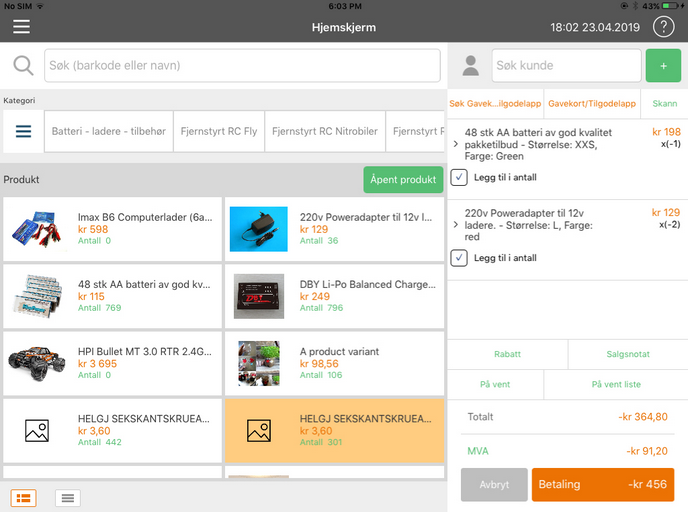
- If it is a multi-item sale, the customer may only wish to return one of the items. If this is the case, you can slide the item to left and tap on Delete button beside the item on any products the customer does not want to return.
- You can also edit the quantity of return products

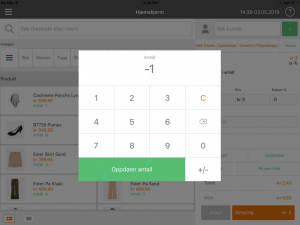
Remember to tap button +/- in order to make it effect into sale screen
If you want to add a Gavekort/tilgodelapp to this returning, you can tap button Gavekort/tilgodelapp on top to add a Gavekort/tilgodelapp item to sale.
Tap button Betaling to go to Payment windows. After you have confirmed this with the customer, choose which payment type you wish to use to finish the return.